


Page 32 - Abbott
P. 32
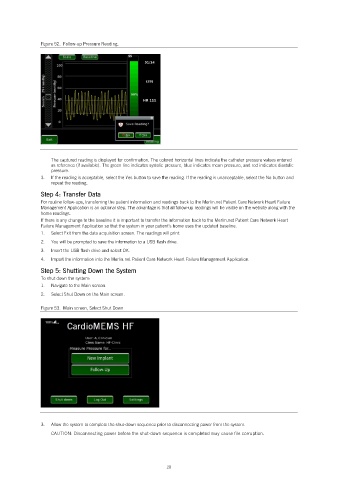
Figure 52.  Follow-up Pressure Reading.


                   The captured reading is displayed for confirmation. The colored horizontal lines indicate the catheter pressure values entered
                   as reference (if available). The green line indicates systolic pressure, blue indicates mean pressure, and red indicates diastolic
                   pressure.
               3.   If the reading is acceptable, select the Yes button to save the reading. If the reading is unacceptable, select the No button and
                   repeat the reading.
               Step 4: Transfer Data
               For routine follow-ups, transferring the patient information and readings back to the Merlin.net Patient Care Network Heart Failure
               Management Application is an optional step. The advantage is that all follow-up readings will be visible on the website along with the
               home readings.
               If there is any change to the baseline it is important to transfer the information back to the Merlin.net Patient Care Network Heart
               Failure Management Application so that the system in your patient’s home uses the updated baseline.
               1.   Select Exit from the data acquisition screen. The readings will print.
               2.   You will be prompted to save the information to a USB flash drive.
               3.   Insert the USB flash drive and select OK.
               4.   Import the information into the Merlin.net Patient Care Network Heart Failure Management Application.
               Step 5: Shutting Down the System
               To shut down the system:
               1.   Navigate to the Main screen.
               2.   Select Shut Down on the Main screen.

               Figure 53.  Main screen, Select Shut Down


               3.   Allow the system to complete the shut-down sequence prior to disconnecting power from the system.
                   CAUTION: Disconnecting power before the shut-down sequence is completed may cause file corruption.


                                                            28

