


Page 27 - Abbott
P. 27
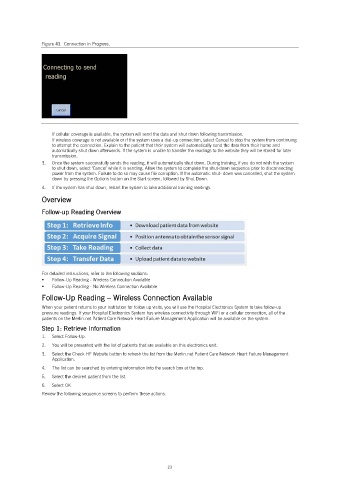
Figure 43. Connection in Progress.
If cellular coverage is available, the system will send the data and shut down following transmission.
If wireless coverage is not available or if the system uses a dial-up connection, select Cancel to stop the system from continuing
to attempt the connection. Explain to the patient that their system will automatically send the data from their home and
automatically shut down afterwards. If the system is unable to transfer the readings to the website they will be stored for later
transmission.
3. Once the system successfully sends the reading, it will automatically shut down. During training, if you do not wish the system
to shut down, select ‘Cancel’ while it is sending. Allow the system to complete the shut-down sequence prior to disconnecting
power from the system. Failure to do so may cause file corruption. If the automatic shut- down was cancelled, shut the system
down by pressing the Options button on the Start screen, followed by Shut Down.
4. If the system has shut down, restart the system to take additional training readings.
Overview
Follow-up Reading Overview
For detailed instructions, refer to the following sections:
Follow-Up Reading - Wireless Connection Available
Follow-Up Reading - No Wireless Connection Available
Follow-Up Reading – Wireless Connection Available
When your patient returns to your institution for follow up visits, you will use the Hospital Electronics System to take follow-up
pressure readings. If your Hospital Electronics System has wireless connectivity through WiFi or a cellular connection, all of the
patients on the Merlin.net Patient Care Network Heart Failure Management Application will be available on the system.
Step 1: Retrieve Information
1. Select Follow-Up.
2. You will be presented with the list of patients that are available on this electronics unit.
3. Select the Check HF Website button to refresh the list from the Merlin.net Patient Care Network Heart Failure Management
Application.
4. The list can be searched by entering information into the search box at the top.
5. Select the desired patient from the list.
6. Select OK.
Review the following sequence screens to perform these actions.
23

