


Page 29 - Abbott
P. 29
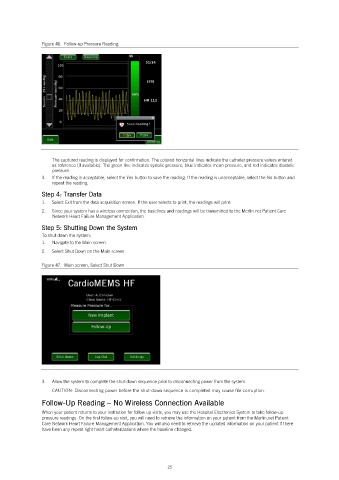
Figure 46.  Follow-up Pressure Reading.


                   The captured reading is displayed for confirmation. The colored horizontal lines indicate the catheter pressure values entered
                   as reference (if available). The green line indicates systolic pressure, blue indicates mean pressure, and red indicates diastolic
                   pressure.
                3.   If the reading is acceptable, select the Yes button to save the reading. If the reading is unacceptable, select the No button and
                   repeat the reading.
                Step 4: Transfer Data
                1.   Select Exit from the data acquisition screen. If the user selects to print, the readings will print.
                2.   Since your system has a wireless connection, the baselines and readings will be transmitted to the Merlin.net Patient Care
                   Network Heart Failure Management Application.
                Step 5: Shutting Down the System
                To shut down the system:
                1.   Navigate to the Main screen.
                2.   Select Shut Down on the Main screen.


                Figure 47.  Main screen, Select Shut Down


                3.   Allow the system to complete the shut-down sequence prior to disconnecting power from the system.
                   CAUTION: Disconnecting power before the shut-down sequence is completed may cause file corruption.
                Follow-Up Reading – No Wireless Connection Available

                When your patient returns to your institution for follow up visits, you may use the Hospital Electronics System to take follow-up
                pressure readings. On the first follow-up visit, you will need to retrieve the information on your patient from the Merlin.net Patient
                Care Network Heart Failure Management Application. You will also need to retrieve the updated information on your patient if there
                have been any repeat right heart catheterizations where the baseline changed.


                                                            25

