


Page 45 - Abbott
P. 45
The system attempts to connect to the network.
3. Select the Cancel button.
The system logs you in.
If you are unable to log in, contact Technical Support for additional assistance.
Merlin Logon Mode
If you enable the Merlin Logon mode, users can log in to the Hospital Electronics System with their Merlin.net PCN username and
password. This allows users from different clinics to share the same system.
You can only view the list of patients that are also available to your clinic on the Merlin.net Patient Care Network Heart Failure
Management Application.
Remote Access
To troubleshoot an issue with your system, the Remote Access feature is available. A technician can log in to your system remotely
when you enable this feature. For more information, contact Technical Support.
Software Update
Updates to the Hospital Electronics System software occur occasionally. If a network connection is available, the system
automatically checks for an update after transferring the data from the first new implant or follow-up readings of the day.
If a software update is available, the system prompts you to install it:
Select the Yes button to download and install the software.
The update takes approximately 20 minutes depending on the network connection.
Select the No button if you do not want to install the software.
To update the software at any time, select the Patient Options button on the Settings screen and then select the Software
Update button.
If your Hospital Electronics System does not have a network connection, software updates are installed with a USB flash drive by
St. Jude Medical™.
Additional Patient Electronics System Functions
Patient Electronics System - Viewing Pressure Values During the Reading
In daily use, your patient will not see their pressure values. For clinicians only, during patient training, a special clinical mode may be
enabled to show the reading values. To enable this mode perform the following steps.
1. From the main electronics screen, select the Options button until the Advanced Options screen appears and then select the
SelectAdv button.
2. Enter the Advanced Options password. This is ‘sensor’. This password is reserved for clinicians. Please do not share it with your
patients. If the patient ever needs to enter this screen, they can be given a daily password that is only valid for one day.
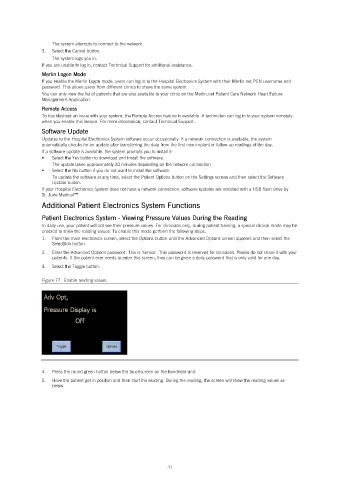
3. Select the Toggle button.
Figure 77. Enable reading values.
4. Press the round green button below the touchscreen on the handheld unit.
5. Have the patient get in position and then start the reading. During the reading, the screen will show the reading values as
below.
41

