


Page 10 - Abbott
P. 10
Overview
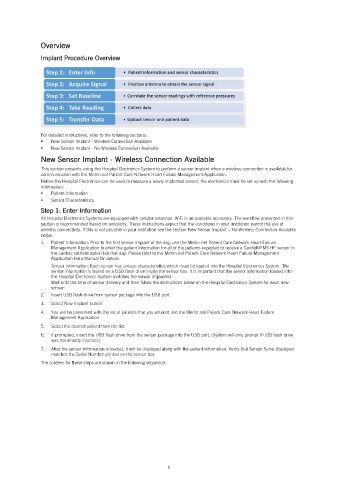
Implant Procedure Overview
For detailed instructions, refer to the following sections:
New Sensor Implant - Wireless Connection Available
New Sensor Implant - No Wireless Connection Available
New Sensor Implant - Wireless Connection Available
This section presents using the Hospital Electronics System to perform a sensor implant when a wireless connection is available for
communication with the Merlin.net Patient Care Network Heart Failure Management Application.
Before the Hospital Electronics can be used to measure a newly implanted sensor, the electronics must be set up with the following
information:
Patient Information
Sensor Characteristics
Step 1: Enter Information
All Hospital Electronics Systems are equipped with cellular antennas. WiFi is an available accessory. The workflow presented in this
section is recommended based on simplicity. These instructions expect that the conditions in your institution permit the use of
wireless connectivity. If this is not possible in your institution see the section New Sensor Implant – No Wireless Connection Available
below.
1. Patient Information: Prior to the first sensor implant of the day, use the Merlin.net Patient Care Network Heart Failure
Management Application to enter the patient information for all of the patients expected to receive a CardioMEMS HF sensor in
the cardiac catheterization lab that day. Please refer to the Merlin.net Patient Care Network Heart Failure Management
Application Help Manual for details.
Sensor Information: Each sensor has unique characteristics which must be loaded into the Hospital Electronics System. The
sensor information is stored on a USB flash drive inside the sensor box. It is important that the sensor information loaded into
the Hospital Electronics System matches the sensor implanted.
Wait until the time of sensor delivery and then follow the instructions below on the Hospital Electronics System for each new
sensor:
2. Insert USB flash drive from sensor package into the USB port.
3. Select New Implant button.
4. You will be presented with the list of patients that you entered into the Merlin.net Patient Care Network Heart Failure
Management Application.
5. Select the desired patient from the list.
6. If prompted, insert the USB flash drive from the sensor package into the USB port. (System will only prompt if USB flash drive
was not already inserted.)
7. After the sensor information is loaded, it will be displayed along with the patient information. Verify that Sensor Serial displayed
matches the Serial Number printed on the sensor box.
The screens for these steps are shown in the following sequence.
6

