


Page 16 - Abbott
P. 16
New Sensor Implant – No Wireless Connection Available
This section presents the use of the Hospital Electronics System to perform a sensor implant when a wireless connection is not
available for communication with the Merlin.net Patient Care Network Heart Failure Management Application. The patient
information is entered manually on the Hospital Electronics System.
Before the Hospital Electronics can be used to measure a newly implanted sensor, the electronics must be set up with the following
information:
Patient Information
Sensor Characteristics
Step 1: Enter Information
Each sensor has unique characteristics which must be loaded into the Hospital Electronics System. The sensor information is stored
on a USB flash drive inside the sensor box. It is important that the sensor information loaded into the Hospital Electronics System
matches the sensor implanted.
Wait until the time of sensor delivery and then follow the instructions below on the Hospital Electronics System for each new patient:
1. Insert USB flash drive from sensor package into the USB port.
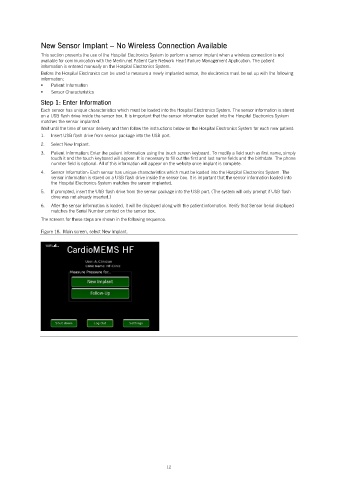
2. Select New Implant.
3. Patient Information: Enter the patient information using the touch screen keyboard. To modify a field such as first name, simply
touch it and the touch keyboard will appear. It is necessary to fill out the first and last name fields and the birthdate. The phone
number field is optional. All of this information will appear on the website once implant is complete.
4. Sensor Information: Each sensor has unique characteristics which must be loaded into the Hospital Electronics System. The
sensor information is stored on a USB flash drive inside the sensor box. It is important that the sensor information loaded into
the Hospital Electronics System matches the sensor implanted.
5. If prompted, insert the USB flash drive from the sensor package into the USB port. (The system will only prompt if USB flash
drive was not already inserted.)
6. After the sensor information is loaded, it will be displayed along with the patient information. Verify that Sensor Serial displayed
matches the Serial Number printed on the sensor box.
The screens for these steps are shown in the following sequence.
Figure 18. Main screen, select New Implant.
12

